Disclosure: As an Amazon Associate we earn from qualifying purchases. This post contains affiliate links — if you buy through one, we may earn a small commission at no extra cost to you. Our product picks focus on items we can link to, so we may not cover every option on the market. See our About page for how we choose them.
Getting Started with Virgin Media Play on Samsung TVs
Virgin Media Play is the official app that lets Virgin Media Ireland broadband and TV customers stream live channels, catch-up content, and on-demand shows directly through supported smart TVs. If you have a Samsung Smart TV running the Tizen operating system, you can usually install this app straight from the built-in app store, without needing any extra boxes or cables.
This guide walks through the process from checking compatibility to signing in and fixing common issues.
Before You Begin
Before installing anything, it’s worth confirming a few basics:
- You need an active Virgin Media subscription that includes TV services. A broadband-only account will not give you access to the Virgin Media Play content.
- Your Samsung TV should be reasonably recent. Tizen-based Samsung Smart TVs from roughly the last several years typically support the app, but exact compatibility can vary by model year and region. If you’re unsure whether your specific model is supported, it’s best to check Samsung’s or Virgin Media’s official support pages, as we can’t guarantee every model works.
- A stable internet connection is essential, ideally via ethernet or a strong Wi-Fi signal, since streaming quality depends heavily on your connection.
Step 1: Connect Your TV to the Internet
Go to your TV’s network settings menu and confirm it’s connected to your home Wi-Fi or wired network. Run a quick connection test if your TV offers one, just to rule out network issues before you start installing apps.
Step 2: Open the Samsung Smart Hub
Press the Home button on your Samsung remote to bring up the Smart Hub interface. This is where all your installed apps live, and it’s also the gateway to the Samsung app store.
Step 3: Find the App Store
From the Smart Hub, navigate to the section usually labelled Apps. This opens Samsung’s app marketplace, where you can search for and download apps compatible with your TV.
Step 4: Search for Virgin Media Play
Use the search function within the Apps section and type in “Virgin Media Play.” Select the official app when it appears in the results. Double-check that the publisher listed is Virgin Media, since app store listings can sometimes be confusing if there are similarly named apps.
Step 5: Install the App
Select Install and wait for the download to complete. This should only take a minute or two on a decent broadband connection. Once installed, the app icon will appear either in your Apps list or on the Smart Hub home screen, depending on how your TV is configured.
Step 6: Sign In
Open the Virgin Media Play app and you’ll be prompted to sign in. You’ll typically need your Virgin Media account credentials, the same ones used for My Virgin Media online or the mobile app. If you’ve never set up online account access, you may need to register first via Virgin Media’s website before you can log in on the TV.
Some Samsung TV apps also support a “sign in on another device” option, where you visit a short web address on your phone or computer and enter a code shown on the TV screen. Whether Virgin Media Play offers this exact method isn’t something we can confirm with certainty, so treat the on-screen instructions as the authoritative guide during setup.
Step 7: Start Streaming
Once signed in, you should see your available channels and on-demand content. Browse using your remote’s directional buttons and select a programme to start watching. If you have parental controls or a PIN set up on your account, you may be asked to enter it before accessing certain content.
Troubleshooting Common Issues
- App won’t install: Check that your TV’s software is up to date via Settings > Support > Software Update.
- Login fails repeatedly: Reset your Virgin Media password through the official website and try again.
- Buffering or poor picture quality: Test your broadband speed and consider switching to a wired ethernet connection if you’re relying on Wi-Fi.
- App missing from the store: This can happen if your specific TV model isn’t supported, or if you’re outside Ireland, since regional restrictions may apply.
Final Thoughts
Setting up Virgin Media Play on a Samsung Smart TV is generally straightforward, provided your TV model is supported and your subscription is active. If you run into persistent problems, Virgin Media’s customer support team is the best point of contact, as they can check account-specific issues that go beyond general setup steps.
Related guides: How to Set Up NOW on a Samsung or LG Smart TV · How to Set Up Disney+ on an LG Smart TV
Recommended for This Guide
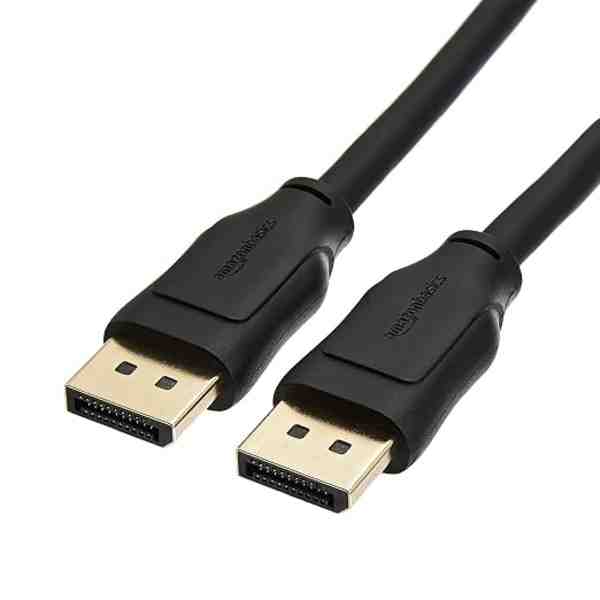
High-Speed HDMI 2.1 Cable
Worth having a spare on hand — older bundled cables often bottleneck 4K/HDR playback.
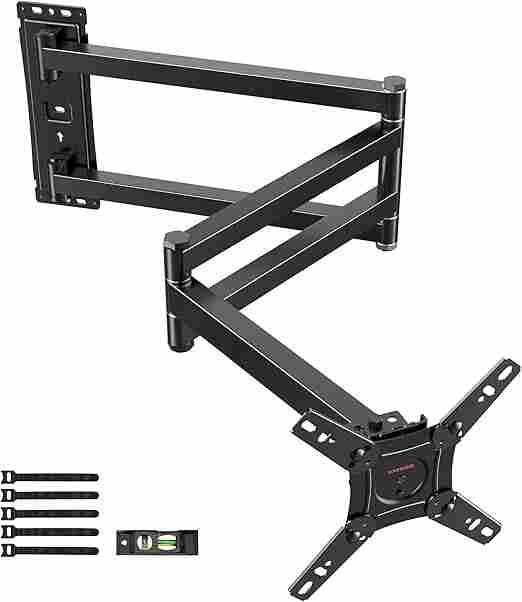
Adjustable TV Wall Mount
Tilting/swivel mounts make it much easier to angle the screen for glare-free streaming, especially in bright rooms.
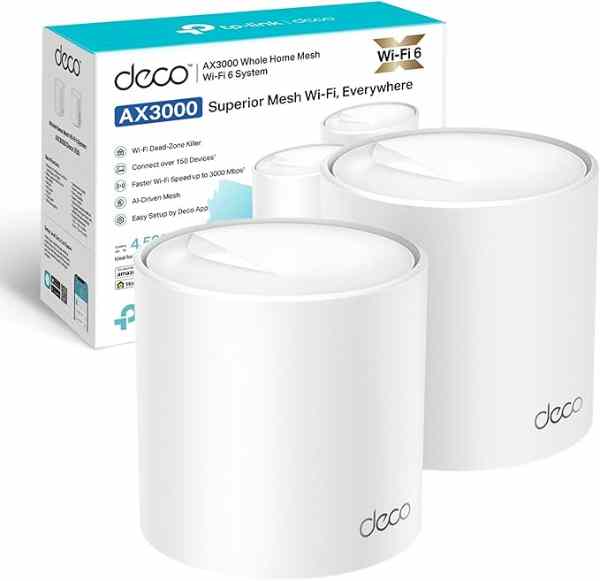
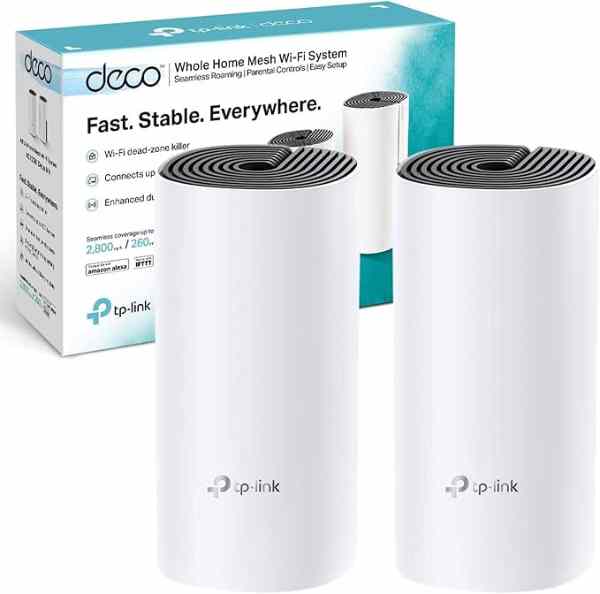
Mesh Wi-Fi System (2-pack)
A bigger upgrade than a single extender, but the most reliable fix for houses where streaming boxes are far from the router.
As an Amazon Associate we earn from qualifying purchases. We may earn a small commission at no extra cost to you. Learn more.