Disclosure: As an Amazon Associate we earn from qualifying purchases. This post contains affiliate links — if you buy through one, we may earn a small commission at no extra cost to you. Our product picks focus on items we can link to, so we may not cover every option on the market. See our About page for how we choose them.
Why YouTube Belongs on the Big Screen
YouTube has quietly become one of the most-watched services on Irish televisions, covering everything from music and documentaries to GAA highlights and tech reviews. Unlike some streaming apps, YouTube is free to use, though a Premium subscription removes ads and adds background play. Getting it properly installed and signed in only takes a few minutes on most platforms.
This guide walks through the process on the main smart TV operating systems and streaming devices sold here, along with a few fixes for common sign-in and playback hiccups.
Before You Start
Make sure your television or streaming device is connected to the internet, either via Wi-Fi or a wired connection. If you’re setting up a new TV, this is also a good moment to check your cabling — a decent High-Speed HDMI 2.1 Cable helps avoid dropouts or resolution issues, particularly if you’re running 4K content or a soundbar through the same connection.
It’s also worth having your Google account details handy, or your phone nearby, since several platforms let you sign in by scanning a QR code rather than typing a password with a remote.
Installing YouTube on Smart TV Platforms
Most modern smart TVs — whether running Android TV, Google TV, Tizen (Samsung), or webOS (LG) — come with YouTube pre-installed. If it’s missing or was removed, you can reinstall it from the TV’s own app store.
Samsung (Tizen) and LG (webOS): Open the Apps section from the home screen, search for “YouTube,” and select install. Once installed, opening the app usually presents a sign-in screen with an on-screen code. Visit youtube.com/activate on your phone or computer, enter the code, and select your account.
Android TV and Google TV: YouTube is typically built in and signed in automatically if you used a Google account during setup. If not, it’s available through the Google Play Store icon on the home screen.
Setting It Up on Streaming Devices
If your television doesn’t have a modern smart platform, a streaming stick is usually the simplest fix.
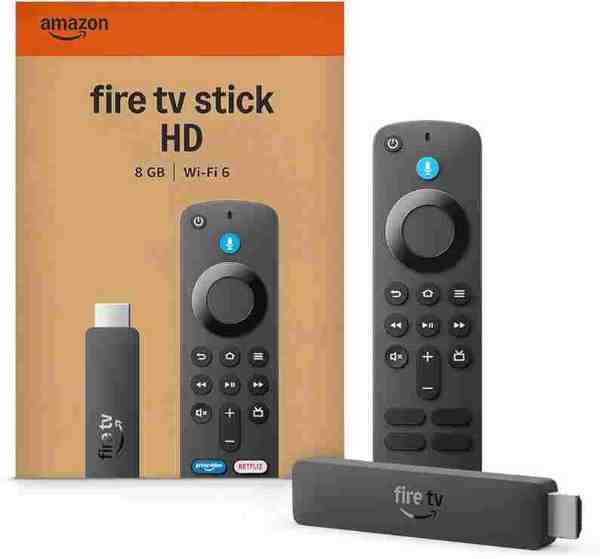
Fire TV Stick and Fire TV Cube: From the home screen, go to the search icon, type “YouTube,” and select Get or Download. Amazon’s Fire TV interface doesn’t include YouTube by default on every model, but it’s readily available through the app store. Sign in using the code method described above.
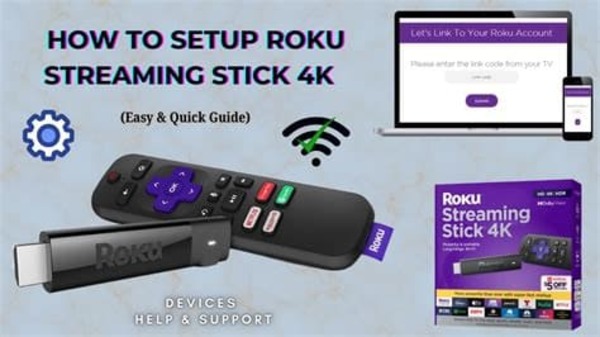
Roku: Open the Roku Channel Store, search for YouTube, and add it to your channel list. Roku will prompt you to activate the app using a code entered on a separate browser.
Google TV Streamer or Chromecast with Google TV: YouTube comes pre-loaded, and if you signed into your Google account during initial setup, it should already be linked. Otherwise, install it from the built-in app store and follow the same activation code process.
If you’re mounting a new TV alongside setting up these devices, an Adjustable TV Wall Mount makes it easier to angle the screen correctly and tidy away cabling from streaming sticks and cubes sitting behind the panel.
Fixing Common Sign-In and Playback Issues
“Something went wrong” or endless loading: This is usually a connectivity issue rather than an account problem. Restart your router and the streaming device, and confirm other apps are working normally.
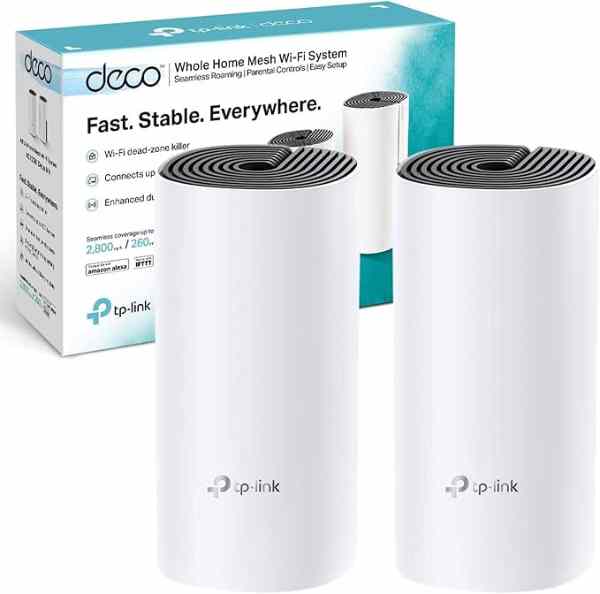
Buffering during peak evening hours: If multiple devices in the house are streaming simultaneously, your Wi-Fi may be struggling to keep up. A Mesh Wi-Fi System (2-pack) can improve coverage and stability throughout the house, particularly if your TV is in a room far from the router.
Wrong account signed in: Go to your account icon within the YouTube app and select “Switch Account” or “Sign Out,” then repeat the activation process with the correct Google account.
App store showing no results for YouTube: This can happen if the TV’s regional app store setting doesn’t match your actual location. Check the store or account region setting in your TV’s system menu and make sure it matches where you’re actually using the device, then search again.
A Quick Note on Premium Features
YouTube Premium and YouTube Music Premium subscriptions carry over automatically to the TV app once you’re signed into the correct account — there’s no separate sign-up needed on the television itself. If ads are still appearing despite an active subscription, double-check that you’re logged into the same account used to purchase Premium, as it’s easy to end up signed into a secondary or family member’s profile on a shared television.
Recommended for This Guide
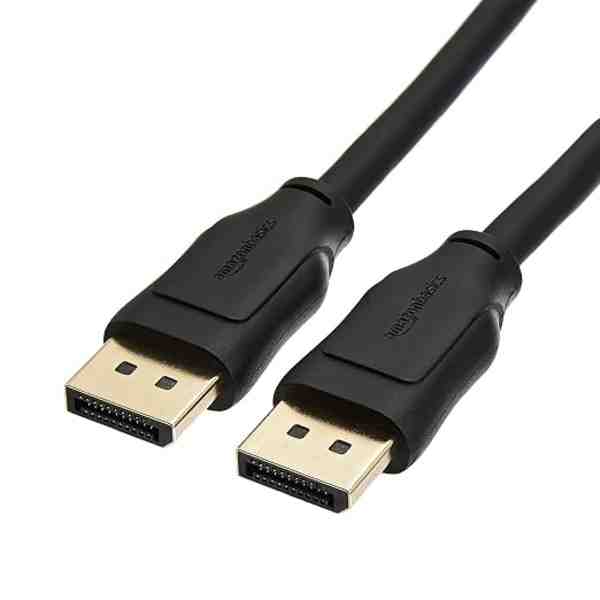
High-Speed HDMI 2.1 Cable
Worth having a spare on hand — older bundled cables often bottleneck 4K/HDR playback.
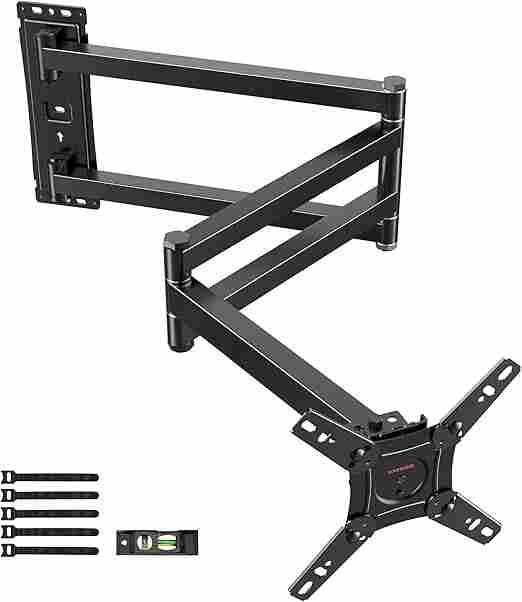
Adjustable TV Wall Mount
Tilting/swivel mounts make it much easier to angle the screen for glare-free streaming, especially in bright rooms.
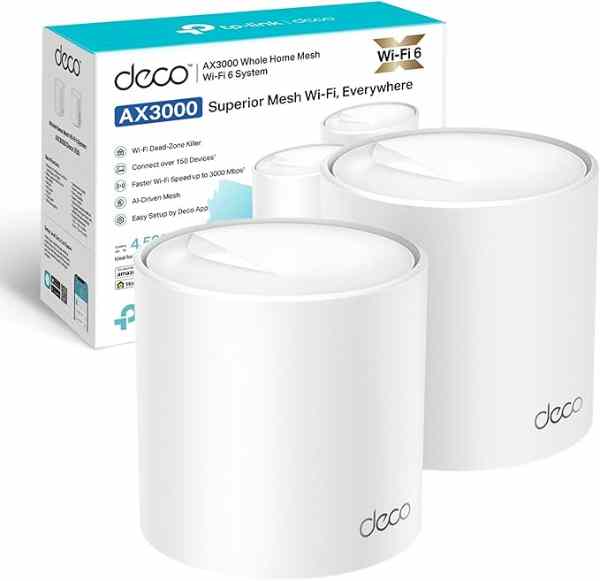
Mesh Wi-Fi System (2-pack)
A bigger upgrade than a single extender, but the most reliable fix for houses where streaming boxes are far from the router.
As an Amazon Associate we earn from qualifying purchases. We may earn a small commission at no extra cost to you. Learn more.