Disclosure: As an Amazon Associate we earn from qualifying purchases. This post contains affiliate links — if you buy through one, we may earn a small commission at no extra cost to you. Our product picks focus on items we can link to, so we may not cover every option on the market. See our About page for how we choose them.
Getting Disney+ Ready on Your LG Smart TV
Disney+ is available as a native app on most LG Smart TVs running webOS, which means Irish viewers can stream everything from Marvel to Pixar without needing an extra box plugged in. That said, a few older LG models may not support the app at all, so it’s worth checking your TV’s webOS version before you start. If your telly is more than five or six years old, you may need to check LG’s official support pages for compatibility, as we can’t confirm exact cut-off years here.
Here’s how to get everything set up properly.
Step 1: Check Your Internet Connection
Before touching the app store, make sure your LG TV has a stable internet connection, either via Wi-Fi or a wired connection through the settings menu. Disney+ in HD or 4K can be demanding on your bandwidth, especially if multiple devices are streaming in the house at once. If you’ve noticed buffering or dropouts in the past, upgrading to a Mesh Wi-Fi System can make a real difference in larger Irish homes with thick walls, where a single router often struggles to reach the sitting room.
If your TV is positioned far from your router and you’d rather use a wired connection for rock-solid streaming, a good quality High-Speed HDMI 2.1 Cable is also worth having on hand, particularly if you’re connecting an external streaming device or games console alongside your smart TV apps.
Step 2: Find the Disney+ App
On your LG remote, press the Home button to bring up the webOS launcher bar. From here, look for the LG Content Store (sometimes labelled slightly differently depending on your software version). Search for “Disney+” in the store’s search function.
If Disney+ doesn’t appear in search results, it may already be pre-installed on your home screen row of apps, so it’s worth scrolling through before assuming it’s missing entirely.
Step 3: Download and Install
Select the Disney+ app icon and choose install (the exact wording of the button may vary slightly between webOS versions, so look for anything along the lines of “Install” or “Get”). The download shouldn’t take long on a decent broadband connection. Once complete, the app icon should appear on your home screen automatically.
Step 4: Sign In or Create an Account
Open the app and you’ll be prompted to log in. You have a couple of options here:
- Enter your email and password directly using the on-screen keyboard and remote.
- Choose the “sign in with code” option if available, which lets you visit disneyplus.com/begin on your phone or laptop, enter a short code, and link your TV that way. This is often faster than typing a long password with a remote.
If you don’t yet have a subscription, you’ll be able to sign up for one directly through the app or via the Disney+ website, where current pricing and plan options for Ireland are listed. We’d recommend checking the official site for up-to-date pricing, as subscription costs do change from time to time.
Step 5: Adjust Your Streaming Settings
Once logged in, head into your account settings within the app to set your preferred video and audio quality, especially if you’re on a capped broadband plan. You can also set up individual profiles for family members here, which is handy if everyone has different viewing histories and recommendations.
Mounting and Placement Tips
If you’re setting up Disney+ as part of a wider TV upgrade or room refresh, it’s a good moment to think about where your television actually sits. A well-positioned Adjustable TV Wall Mount can improve viewing angles and free up space compared to a bulky TV stand, particularly in smaller Irish sitting rooms.
Troubleshooting Common Issues
If the app crashes, freezes, or won’t load content, try these steps in order:
- Restart the app fully by closing it from the running apps menu, not just pressing Home.
- Restart the TV itself by unplugging it from the mains for around 30 seconds.
- Check for any pending software updates in your TV’s general settings, as outdated webOS versions can cause playback issues.
- As a last resort, uninstall and reinstall the Disney+ app.
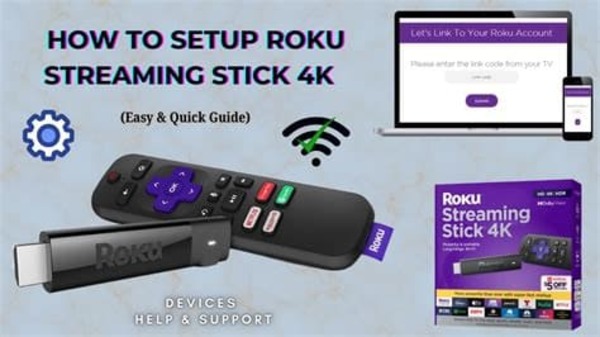
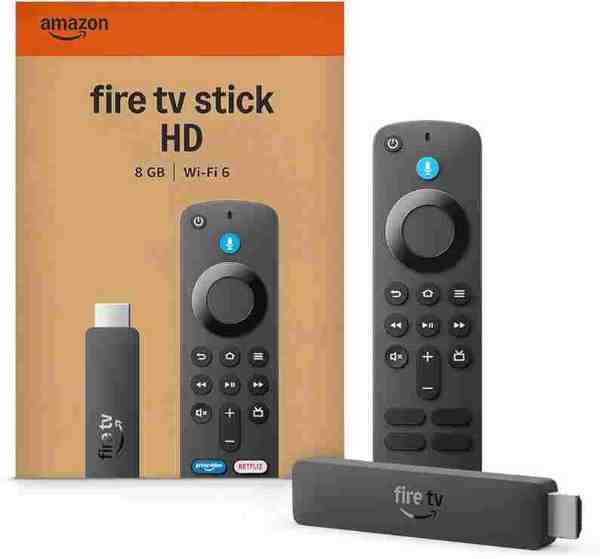
If your LG TV doesn’t support Disney+ at all, or the app performance is consistently poor, plugging in an external device such as a Fire TV Stick, Fire TV Cube, Roku, or Chromecast is a reliable workaround worth considering.
Related guides: How to Set Up NOW on a Samsung or LG Smart TV · How to Set Up Virgin Media Play on a Samsung Smart TV
Recommended for This Guide
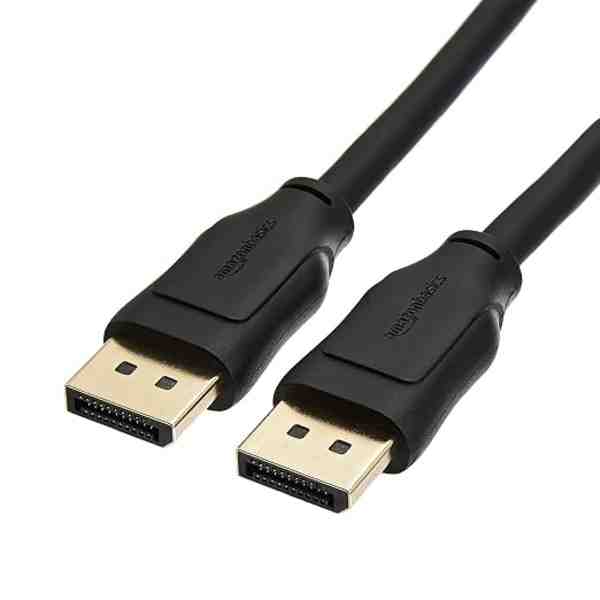
High-Speed HDMI 2.1 Cable
Worth having a spare on hand — older bundled cables often bottleneck 4K/HDR playback.
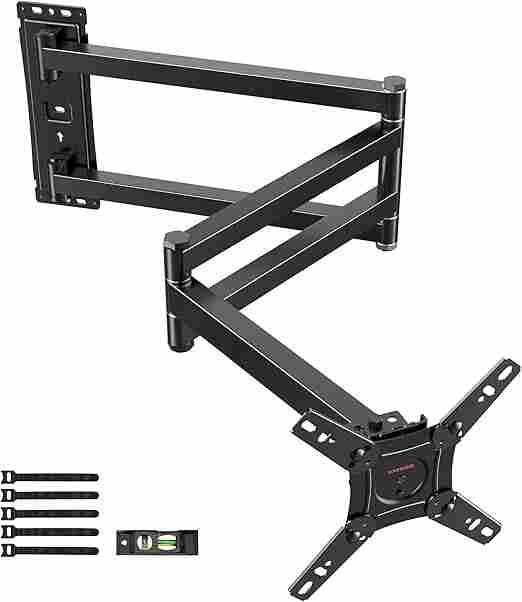
Adjustable TV Wall Mount
Tilting/swivel mounts make it much easier to angle the screen for glare-free streaming, especially in bright rooms.
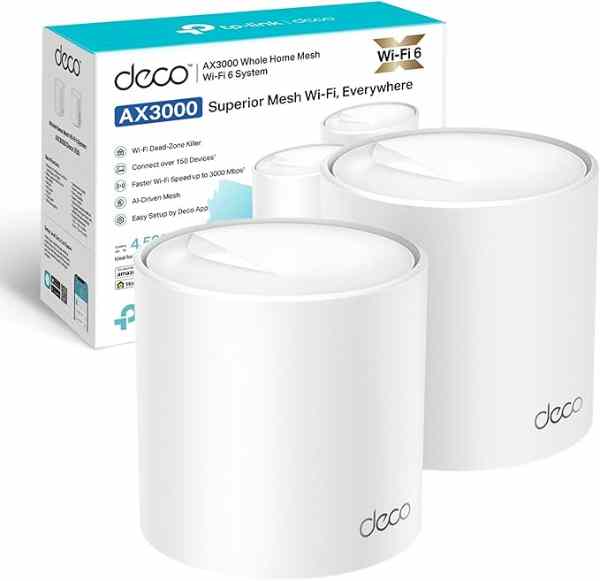
Mesh Wi-Fi System (2-pack)
A bigger upgrade than a single extender, but the most reliable fix for houses where streaming boxes are far from the router.
As an Amazon Associate we earn from qualifying purchases. We may earn a small commission at no extra cost to you. Learn more.