Disclosure: As an Amazon Associate we earn from qualifying purchases. This post contains affiliate links — if you buy through one, we may earn a small commission at no extra cost to you. Our product picks focus on items we can link to, so we may not cover every option on the market. See our About page for how we choose them.
Why You’re Seeing This Message
If you’ve ever settled in to watch something on a legitimate streaming service in Ireland and been hit with a “not available in your country” or “content restricted” error, you’re not alone. This is a common issue and it almost always comes down to licensing agreements, not a fault with your device or app.
Streaming services buy the rights to show certain films, series, or sports events in specific territories. A show licensed for the UK catalogue, for example, may not be cleared for Irish audiences, even though the app itself works perfectly fine here. This is completely normal and happens across all the major legal platforms.
Common Causes
There are a few typical reasons this pops up on a fully legitimate streaming setup:
- Your account is registered in a different country than where you’re currently connecting from.
- A VPN or proxy is active on your router or device, even unintentionally, making the service think you’re abroad.
- App or firmware is out of date, causing incorrect region detection.
- Temporary licensing changes, where content is pulled or added on short notice.
- Payment method mismatch, where your card is registered to a different country than your account settings.
Step-by-Step Fixes
1. Check Your Account Region Settings
Log into your streaming service’s website (rather than the app) and check your account or profile settings. Most platforms let you view your registered country. If it’s wrong, you may need to update your billing address and payment method to match your actual location.
2. Turn Off Any VPN or Proxy Software
If you or someone in your household has a VPN app installed on a phone, router, or smart TV box, switch it off before streaming. Even background VPN apps on a phone can sometimes affect shared network settings. Legal streaming apps are designed to detect your real location, and VPNs often trigger false region-mismatch errors.
3. Restart Your Router and Device
A simple restart can refresh your IP address and clear up temporary detection issues. Unplug your router for about 30 seconds, then restart your streaming device as well, whether that’s a Fire TV Stick, Fire TV Cube, Roku, or Chromecast.
4. Update Your Apps and Firmware
Outdated streaming apps sometimes contain bugs affecting region detection. Check your device’s app store for pending updates, and make sure your device’s system software is current too.
5. Check Your Network Signal
Weak or unstable Wi-Fi can sometimes cause apps to misbehave in unexpected ways, including throwing up incorrect error messages. If your streaming device sits far from your router, a Wi-Fi range extender can help maintain a consistent connection. For a more permanent fix in larger homes, a mesh Wi-Fi system spreads reliable coverage across multiple rooms, which is particularly useful if your smart TV or streaming stick is in a different part of the house from your router.
6. Try a Wired Connection
If Wi-Fi issues persist, connecting your streaming device directly to your router with a long Ethernet cable removes wireless interference from the equation entirely and can resolve odd app behaviour, including region-detection glitches.
When It’s Genuinely Not Available
Sometimes the message is accurate: the content simply isn’t licensed for Ireland yet, or the licensing window has ended. In these cases, there’s no legitimate fix, and the right approach is to check whether the title is available on another authorised Irish service, or simply wait, as catalogues change regularly.
A Note on Workarounds
You may see suggestions online for using VPNs or DNS tricks to access other countries’ catalogues. Doing this typically breaches the terms of service of the streaming platform and can result in account suspension. It’s best avoided, both for account safety and because it doesn’t support the licensing system that allows Irish audiences to get local content and pricing in the first place.
Related guides: Audio Out of Sync? Fixing Streaming Lag on Smart TVs · Disney+ Not Working? Try These Fixes
Recommended for This Guide
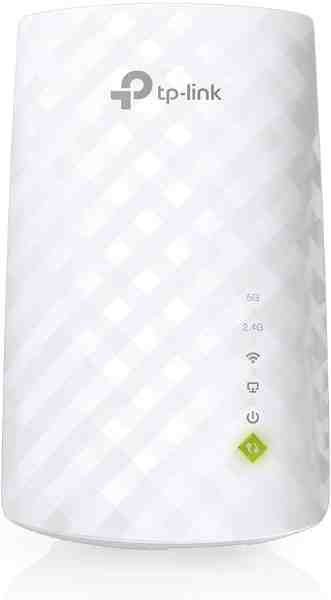
Wi-Fi Range Extender
The most common fix for streaming boxes that are too far from the router — extends your signal without a full mesh system.
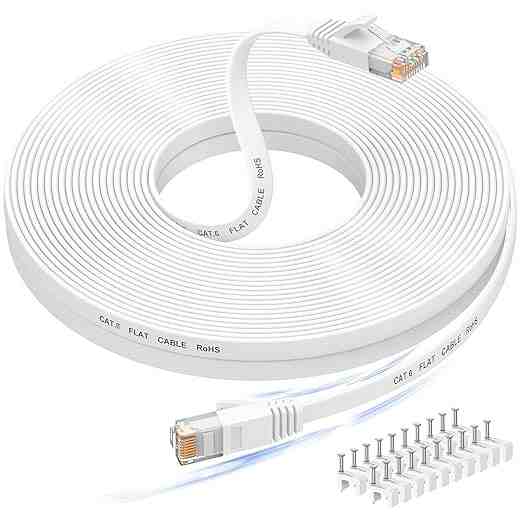
Long Ethernet Cable
A wired connection eliminates Wi-Fi buffering entirely if you can run a cable to your streaming device.
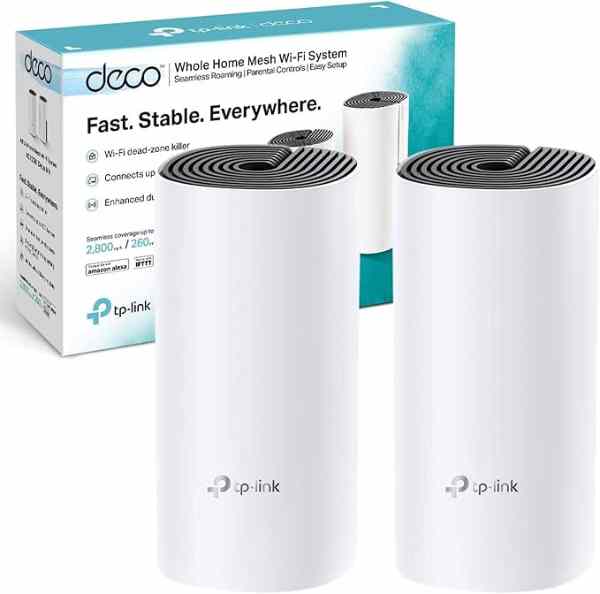
Mesh Wi-Fi System (2-pack)
For persistent buffering across multiple rooms, a mesh system solves it more thoroughly than a single extender.
As an Amazon Associate we earn from qualifying purchases. We may earn a small commission at no extra cost to you. Learn more.