Disclosure: As an Amazon Associate we earn from qualifying purchases. This post contains affiliate links — if you buy through one, we may earn a small commission at no extra cost to you. Our product picks focus on items we can link to, so we may not cover every option on the market. See our About page for how we choose them.
Few things ruin a good film faster than watching someone’s lips move a beat before you hear them speak. Audio sync issues (sometimes called “lip sync drift”) are one of the most common streaming complaints, and thankfully most causes are fixable without calling anyone out to your house.
This guide runs through the usual suspects, from your telly’s own settings to your home network, so you can get back to watching without the distraction.
Why Audio Drifts Out of Sync
Audio delay usually happens because video and sound take slightly different paths to your ears and eyes. Video often needs more processing (especially with upscaling or motion smoothing features), while audio can arrive a fraction of a second earlier. Streaming adds another layer of complexity because the video and audio streams are sometimes decoded separately before being recombined for playback.
The good news is that this is a well-known issue, and every major smart TV brand and streaming device has settings designed to correct it.
Start With the Simple Fixes
Before diving into settings menus, try these quick steps:
- Restart the app. Close it fully rather than just backing out, then reopen it.
- Restart the TV or streaming device. A full power cycle clears temporary glitches more often than you’d think.
- Check for software updates. Both your TV’s firmware and the individual streaming apps get regular updates, and sync bugs are often patched quietly.
- Try a different show or app. If sync issues only happen on one app, the problem is likely with that app rather than your TV.
Adjusting Audio Delay Settings
Most smart TVs and soundbars have a manual audio delay (sometimes called “audio sync” or “lip sync”) setting that lets you nudge the sound earlier or later in small increments.
- On Samsung TVs, this is generally found under Sound settings, sometimes labelled “Sound Sync” or similar.
- On LG TVs, look in Sound settings for an “AV Sync” adjustment.
- On Sony and other Android TV based sets, check Sound settings for a sync or delay option.
Menu wording changes between models and software versions, so if you can’t find the exact term, searching your TV’s support site for “audio sync” alongside your model number is a reliable way to find the right menu.
If you use a separate soundbar or AV receiver, check its settings too, as delay adjustments are sometimes better handled there rather than on the TV itself.
Streaming Device Considerations
If you’re using an external streaming device rather than your TV’s built-in apps, the fix might live on the device instead.
- Fire TV Stick or Fire TV Cube: check the audio settings within the specific app you’re watching, as some apps (like certain sports or catch-up services) have their own sync controls separate from the device-wide settings.
- Roku devices: a system restart often resolves minor drift, and it’s worth checking that your Roku software is up to date.
- Chromecast: since it relies on your phone or another device to cast, try restarting the casting app on your phone as well as the Chromecast itself.
If sync problems persist across multiple apps on the same device, the device’s own hardware or an outdated HDMI cable could be a factor, and swapping the HDMI cable is a cheap first step before assuming the device is faulty.
When It’s a Network Problem
Sometimes what looks like an audio delay is actually buffering that’s affecting audio and video slightly differently. If your connection is struggling, streams may drop frames or briefly stall, which can throw sync off temporarily.
Signs your network might be the culprit:
- Sync issues happen mainly during peak evening hours
- Picture quality also drops or the stream buffers frequently
- The problem is worse in one room than another
If your Wi-Fi signal is weak in the room where you stream, a Wi-Fi range extender can help boost coverage to that area. For a more permanent fix, especially in larger homes, a mesh Wi-Fi system spreads a stronger, more consistent signal across multiple rooms.
Where possible, a wired connection is the most reliable option. Running a long Ethernet cable from your router to your TV or streaming device removes Wi-Fi variability from the equation entirely, which can resolve both buffering and the knock-on sync issues it sometimes causes.
Still Not Fixed?
If you’ve tried the above and audio is still noticeably out of sync, it’s worth contacting the streaming service’s own support team directly. Sync issues can occasionally stem from a problem with a specific piece of content rather than your setup, and the provider may already be aware of it or able to advise further.
Recommended for This Guide
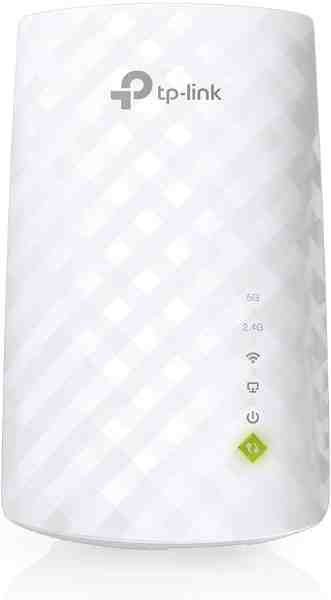
Wi-Fi Range Extender
The most common fix for streaming boxes that are too far from the router — extends your signal without a full mesh system.
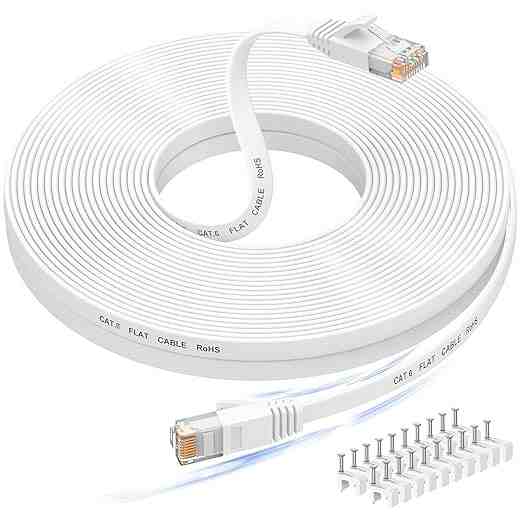
Long Ethernet Cable
A wired connection eliminates Wi-Fi buffering entirely if you can run a cable to your streaming device.
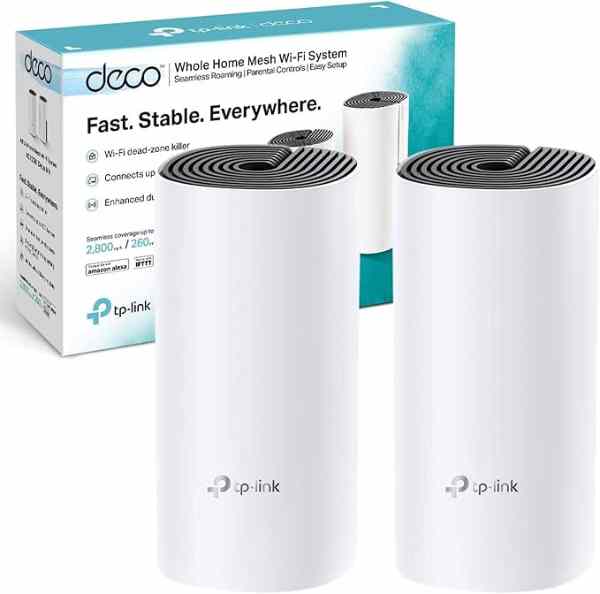
Mesh Wi-Fi System (2-pack)
For persistent buffering across multiple rooms, a mesh system solves it more thoroughly than a single extender.
As an Amazon Associate we earn from qualifying purchases. We may earn a small commission at no extra cost to you. Learn more.