Disclosure: As an Amazon Associate we earn from qualifying purchases. This post contains affiliate links — if you buy through one, we may earn a small commission at no extra cost to you. Our product picks focus on items we can link to, so we may not cover every option on the market. See our About page for how we choose them.
Getting Started with GAA+ on Apple TV
GAA+ (previously known as GAAGO in some markets) is the official streaming service for Gaelic games not shown live on terrestrial television. For anyone with an Apple TV box sitting under the telly, getting GAA+ installed and running is a straightforward job that takes a few minutes. Below is a clear walkthrough to get you from a blank home screen to full-screen championship action.
What You’ll Need
Before you start, make sure you have the following:
- An Apple TV (HD or 4K model) connected to your television
- An active internet connection, ideally broadband over Wi-Fi or Ethernet
- An Apple ID signed in on the device
- A GAA+ subscription, or at least an account set up ready to subscribe
- A good quality HDMI cable running from the Apple TV to your TV
On that last point, if your Apple TV came with an older or budget cable, it’s worth upgrading, particularly if you’re watching in 4K or want to avoid dropouts during a tense final. A High-Speed HDMI 2.1 Cable is a sensible, inexpensive way to make sure the picture keeps up with the action, especially for fast-paced hurling coverage.
Step 1: Download the GAA+ App
- Using your Apple TV remote, navigate to the App Store icon on the home screen.
- Select the search function and type “GAA+” using the on-screen keyboard or by dictating with Siri if your remote supports it.
- Locate the official GAA+ app in the results — the icon should feature GAA branding — and select Get or the cloud download icon to install it.
- Once installed, the app icon will appear on your Apple TV home screen. You may want to move it to a more convenient spot using the remote’s touch surface.
App names and store listings can shift over time, so if “GAA+” doesn’t appear straight away, try searching “GAAGO” as a backup term, since some regions or older listings may still reference the previous name.
Step 2: Sign In or Create an Account
Open the app once installed. You’ll typically be presented with a sign-in screen or a prompt to create a new account.
- If you already have a GAA+ account from using it on a phone, tablet, or browser, choose the sign-in option and enter your email and password using the on-screen keyboard.
- If this is your first time, select the sign-up or subscribe option. You may be asked to complete registration on a separate device or via a web browser using a short on-screen code — this is a common approach for TV apps and isn’t anything to worry about.
- Check the current subscription pricing and package options directly within the app or on the official GAA+ website before committing, since costs can change between seasons and I don’t want to quote a figure here that may be out of date.
Once signed in, your account status should sync automatically, and you’ll see the current schedule of upcoming fixtures on the home screen of the app.
Step 3: Find and Start Watching a Match
With the app open and signed in:
- Browse the home screen or fixtures tab to see live and upcoming games.
- Select a match to view details, including throw-in time and competing counties or clubs.
- If the game is live, a Watch Now or similarly labelled button should appear. Select it to begin streaming.
- For upcoming fixtures, you may be able to set a reminder so the Apple TV notifies you closer to throw-in.
The exact wording of buttons and menus can vary slightly as GAA+ updates its interface, so don’t worry if what you see differs a little from what’s described here.
Casting from an iPhone or iPad Instead
If you’d rather start playback on your phone and send it to the television, GAA+ supports AirPlay. Open the app on your iPhone or iPad, start the match, tap the AirPlay icon, and select your Apple TV from the list of available devices. This is a handy option if you’re already browsing fixtures on your phone and simply want the coverage on a bigger screen.
Troubleshooting Tips
If the app is slow to load or buffers frequently, first check your broadband speed, since live sport streaming benefits from a stable, reasonably fast connection. Restarting the Apple TV by unplugging it briefly can also resolve minor glitches. If sign-in issues persist, try resetting your password through the official GAA+ website rather than repeatedly guessing in the app.
With everything set up, you should be ready to enjoy league and championship coverage in full HD from the comfort of your sofa.
Related guides: How to Set Up Disney+ on an LG Smart TV · How to Set Up NOW on a Samsung or LG Smart TV
Recommended for This Guide
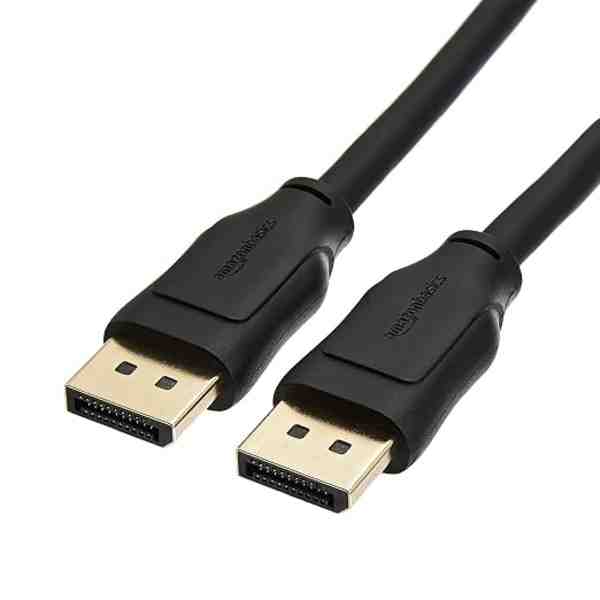
High-Speed HDMI 2.1 Cable
Worth having a spare on hand — older bundled cables often bottleneck 4K/HDR playback.
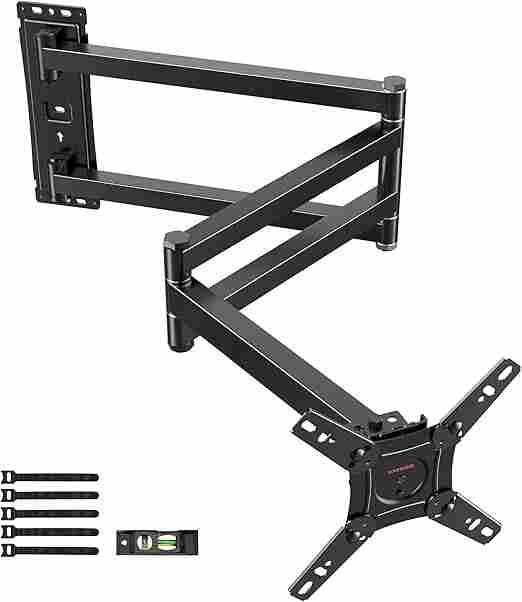
Adjustable TV Wall Mount
Tilting/swivel mounts make it much easier to angle the screen for glare-free streaming, especially in bright rooms.
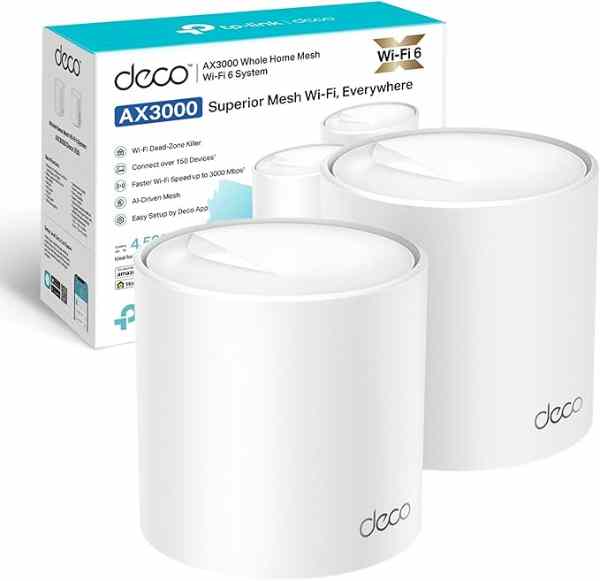
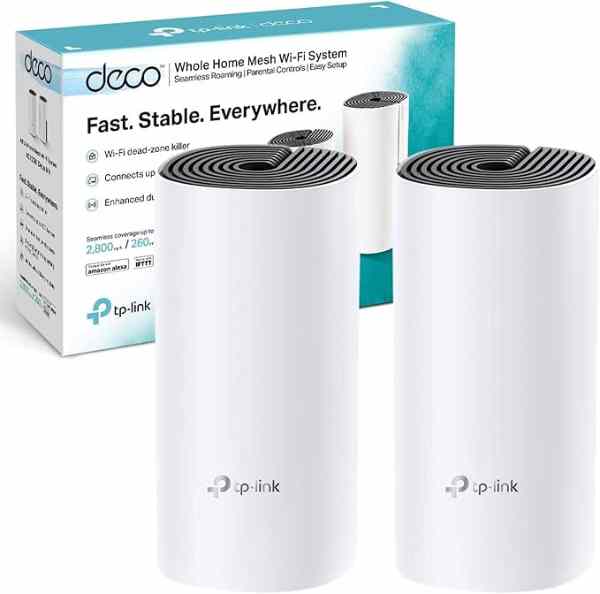
Mesh Wi-Fi System (2-pack)
A bigger upgrade than a single extender, but the most reliable fix for houses where streaming boxes are far from the router.
As an Amazon Associate we earn from qualifying purchases. We may earn a small commission at no extra cost to you. Learn more.