Disclosure: As an Amazon Associate we earn from qualifying purchases. This post contains affiliate links — if you buy through one, we may earn a small commission at no extra cost to you. Our product picks focus on items we can link to, so we may not cover every option on the market. See our About page for how we choose them.
To set up Virgin Media Play on Android, download it from the Google Play Store, sign in with your Virgin Media account details, and follow the on-screen prompts to link your subscription. The rest of this guide walks through each step in more detail, along with some common snags and how to sort them.
Before You Start
Virgin Media Play is the broadcaster’s official streaming app, giving Virgin Media TV customers access to live channels and on-demand content on compatible Android devices. Before installing, it’s worth checking a few basics.
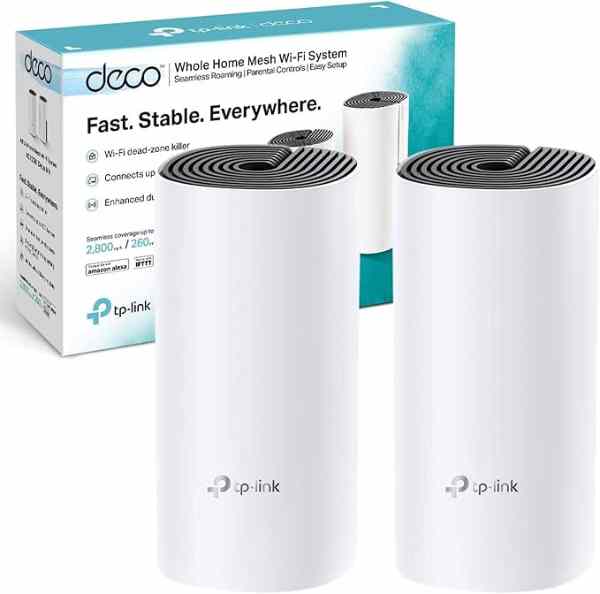
Make sure your Android phone or tablet is running a reasonably recent version of Android, as very old operating systems may not be supported. You’ll also need an active Virgin Media TV subscription, since the app authenticates against your account rather than offering standalone access. A stable Wi-Fi connection is recommended for setup and for streaming without interruptions — if your home broadband has trouble reaching every room, a Mesh Wi-Fi System can help even out coverage between devices.
Step 1: Download the App
Open the Google Play Store on your Android device and search for “Virgin Media Play.” Confirm the app is published by Virgin Media before installing, as app store listings can sometimes include similarly named third-party apps. Tap Install and wait for the download to complete.
If the app doesn’t appear in your search results, double-check that your Google Play Store account region matches Ireland, since app availability is tied to your store region settings. This is usually found under the Play Store’s account or settings menu, and adjusting it there — rather than trying to work around it — is the correct fix.
Step 2: Sign In
Once installed, open the app and select Sign In. You’ll be asked for the same username and password you use for Virgin Media’s website or My Virgin Media account. If you’ve forgotten these details, Virgin Media’s own support pages or customer service line can help you reset them rather than guessing.
After signing in, the app may prompt you to accept terms of use or confirm your account details. This step can occasionally take a moment to sync, especially on a first login, so give it a little time before assuming something has gone wrong.
Step 3: Grant Permissions
Android will likely ask for permissions such as network access, and possibly storage if the app supports downloads for offline viewing (exact wording may vary depending on your Android version). Accept the permissions needed for the app to function — declining core permissions like network access will prevent it from working at all.
Step 4: Explore the Home Screen
Once signed in, you should see a home screen with sections for live TV, on-demand shows, and possibly personalised recommendations based on your viewing. Menu layouts do change from time to time as the app is updated, so don’t worry if what you see doesn’t exactly match older screenshots or guides.
Take a moment to browse the settings menu within the app itself. Here you may find options for video quality, subtitles, and notifications, which are worth adjusting to suit your preferences and your data allowance if you’re not on Wi-Fi.
Step 5: Casting to a Bigger Screen
Many Android users like to send content from their phone or tablet to a television. Virgin Media Play may support casting depending on your device and TV setup. If you’re connecting your Android device directly to a television using a cable instead, a reliable High-Speed HDMI 2.1 Cable helps ensure a stable picture and sound without dropouts, particularly for longer runs behind furniture.
Troubleshooting Common Issues
If the app crashes or won’t load content, try closing it fully and reopening it, or restarting your device. Clearing the app’s cache through Android’s Settings > Apps menu can also resolve minor glitches without needing to reinstall.
Should you see an error suggesting content isn’t available, check that your account details and subscription are active and correctly set up through your My Virgin Media account. In some cases, this kind of message relates to account permissions or subscription tier rather than a technical fault, and Virgin Media’s customer support team is the right place to confirm what’s included and resolve any account-side issues.
If streaming is slow or buffers frequently, confirm your home Wi-Fi signal is strong where you’re watching. Weak signal in bedrooms or extensions is a common culprit, and a mesh system or Wi-Fi extender can make a noticeable difference for consistent streaming quality.
Keeping the App Updated
Android apps update periodically, and Virgin Media Play is no exception. Enabling automatic updates in the Google Play Store ensures you get bug fixes and new features without having to manually check. If something stops working after an update, it’s worth checking Virgin Media’s official support pages, as known issues are often addressed there with specific fixes.
Recommended for This Guide
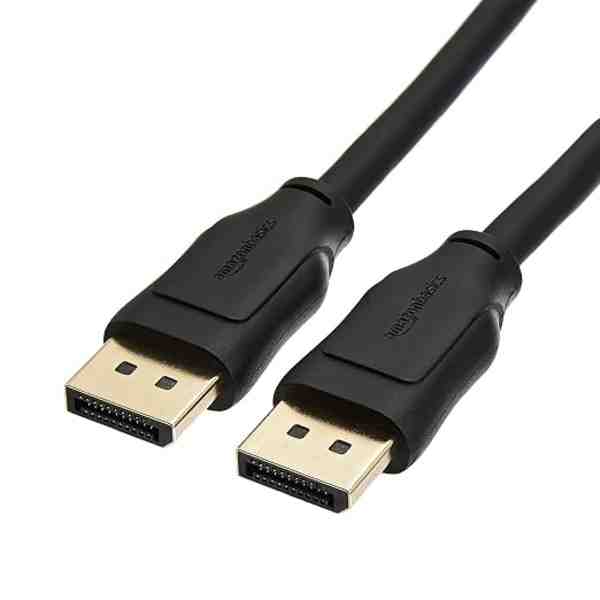
High-Speed HDMI 2.1 Cable
Worth having a spare on hand — older bundled cables often bottleneck 4K/HDR playback.
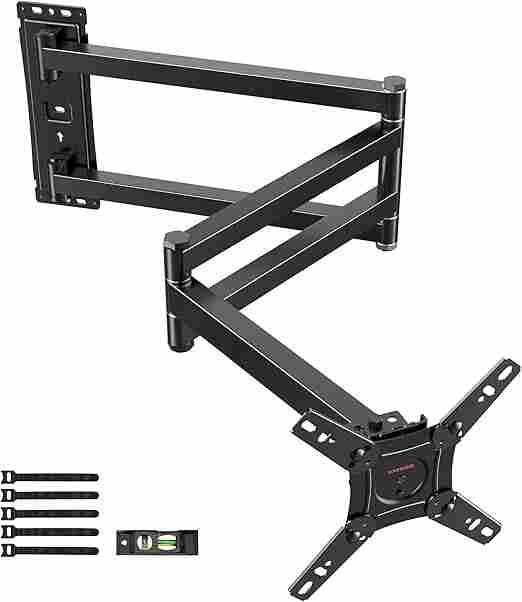
Adjustable TV Wall Mount
Tilting/swivel mounts make it much easier to angle the screen for glare-free streaming, especially in bright rooms.
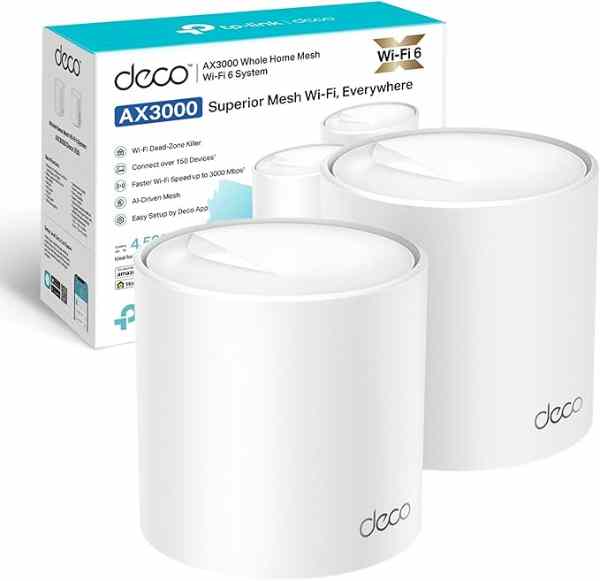
Mesh Wi-Fi System (2-pack)
A bigger upgrade than a single extender, but the most reliable fix for houses where streaming boxes are far from the router.
As an Amazon Associate we earn from qualifying purchases. We may earn a small commission at no extra cost to you. Learn more.