Disclosure: As an Amazon Associate we earn from qualifying purchases. This post contains affiliate links — if you buy through one, we may earn a small commission at no extra cost to you. Our product picks focus on items we can link to, so we may not cover every option on the market. See our About page for how we choose them.
Getting Started with Eir Vision on a New TV
Bringing home a new smart TV is a great excuse to get your Eir Vision setup running properly from day one. Whether you’re moving the service from an old television or activating it for the first time, the process is fairly straightforward once you know the order of steps to follow.
This guide walks through what to expect, from unboxing to fine-tuning your picture settings, so you can get watching with as little fuss as possible.
Before You Start
It’s worth checking a few things before you even turn on the television:
- Your Eir account is active and Eir Vision is included in your plan.
- You have your Eir account login details (username/email and password) to hand.
- Your broadband router is set up and within reasonable range of the TV, or you have a stable Ethernet connection available.
If your new TV is going on a wall rather than a stand, it’s much easier to run cables and test everything before final mounting. An adjustable TV wall mount can make this step easier, since many allow the screen to tilt forward slightly, giving you access to the ports at the back without fully dismounting the television later.
Step 1: Connect Your TV to the Internet
Eir Vision is a streaming service, so a stable internet connection matters more than almost anything else in this setup. Go into your TV’s network settings and connect either via Wi-Fi or a wired Ethernet connection if your TV and router are close enough.
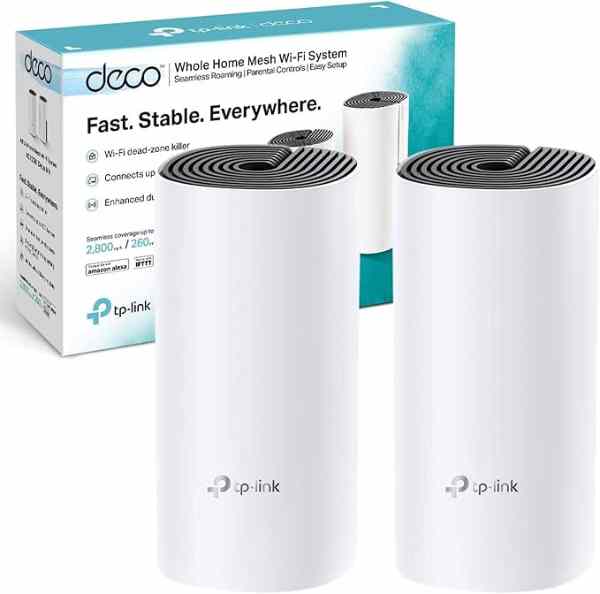
If your home has a few dead zones or the TV is in a room far from the router, a mesh Wi-Fi system can help maintain a steadier signal throughout the house, which reduces buffering and login issues during streaming.
Step 2: Find and Install the Eir Vision App
Most modern smart TVs come with an app store built in, whether that’s the manufacturer’s own store or a platform like Google TV. Search for “Eir Vision” in your TV’s app store and install it directly.
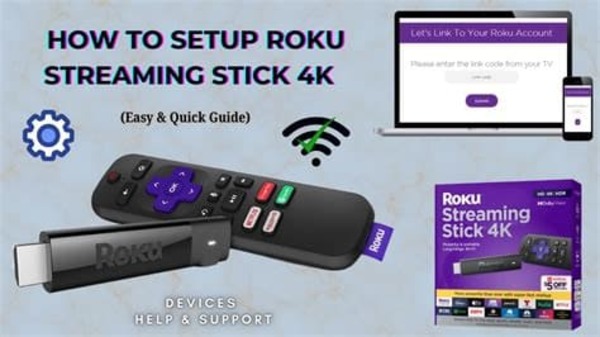
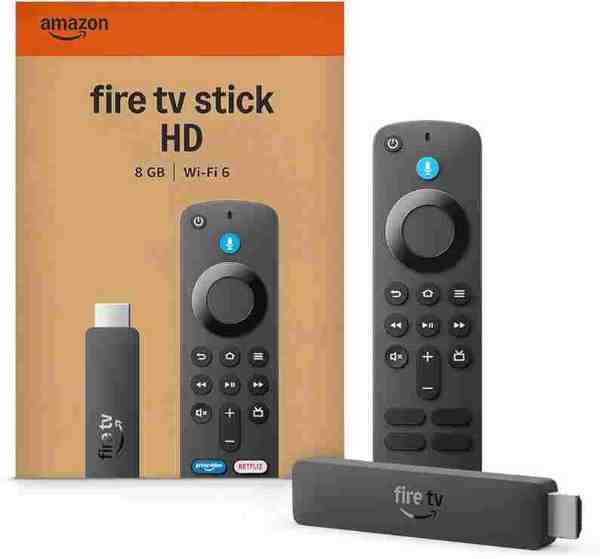
If your particular television doesn’t support the app natively, or the app store search doesn’t return a result, you may need an external streaming device instead. Eir Vision is generally available on devices such as a Fire TV Stick, Fire TV Cube, Roku, or Chromecast — though it’s worth checking Eir’s own website for the current list of supported devices, as compatibility can change over time.
Step 3: Sign In and Activate
Once installed, open the app and sign in using your Eir account credentials. If this is a brand-new activation, you may be prompted to enter an activation code shown on screen at eir.ie/activate on a separate phone or laptop — this is a common way for smart TV apps to link accounts without typing long passwords using a remote control.
If you run into a message saying content isn’t available, double check that your Eir account address and billing region match your actual location, as service availability is tied to your registered account details. If the issue persists, Eir’s own customer support team can check your account status and confirm what might be causing the restriction.
Step 4: Sort Out Picture and Sound
With the app running, it’s worth spending a few minutes in the TV’s picture menu. Streaming apps often default to settings that aren’t ideal for every room, so adjusting brightness and disabling overly aggressive motion smoothing can noticeably improve the picture.
If you’re using an external streaming device rather than the TV’s built-in app, make sure it’s connected with a cable capable of handling higher resolutions and frame rates. A high-speed HDMI 2.1 cable is a sensible choice if your TV and streaming device both support 4K, since older or cheaper cables can sometimes cause dropouts or prevent higher resolutions from working at all.
Step 5: Organise Your Home Screen
Many smart TVs let you pin or favourite specific apps on the home screen. Once Eir Vision is confirmed working, move it somewhere convenient so it’s not buried behind apps you use less often.
A Final Check
Before considering the job done, run through a quick checklist: sign-in works, live channels load, and playback is smooth without excessive buffering. If anything seems off, a simple router restart or reinstalling the app often resolves early teething issues.
Recommended for This Guide
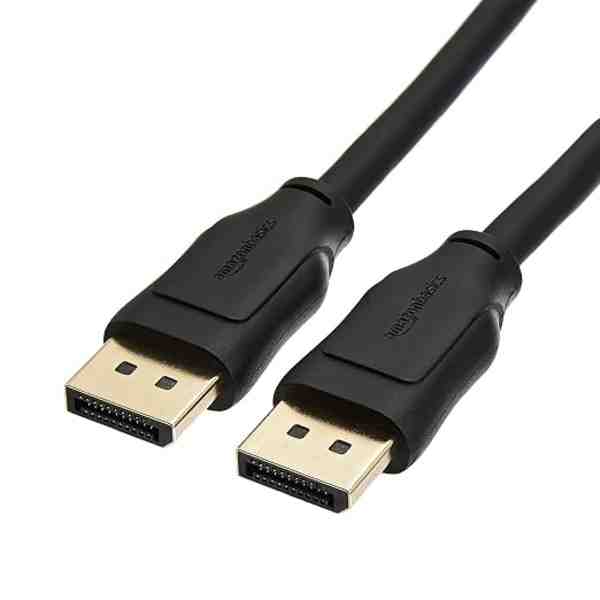
High-Speed HDMI 2.1 Cable
Worth having a spare on hand — older bundled cables often bottleneck 4K/HDR playback.
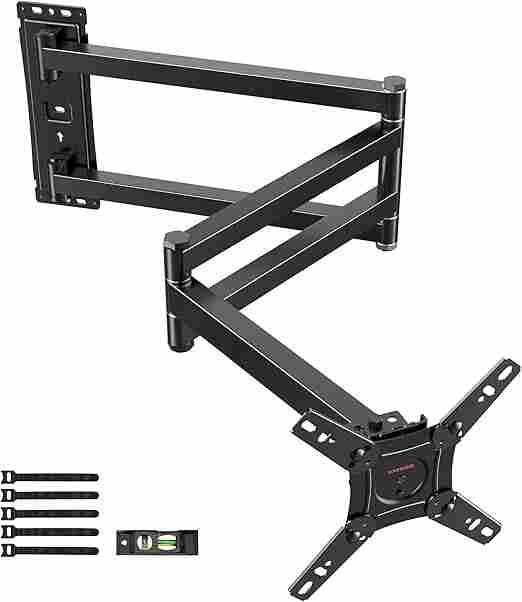
Adjustable TV Wall Mount
Tilting/swivel mounts make it much easier to angle the screen for glare-free streaming, especially in bright rooms.
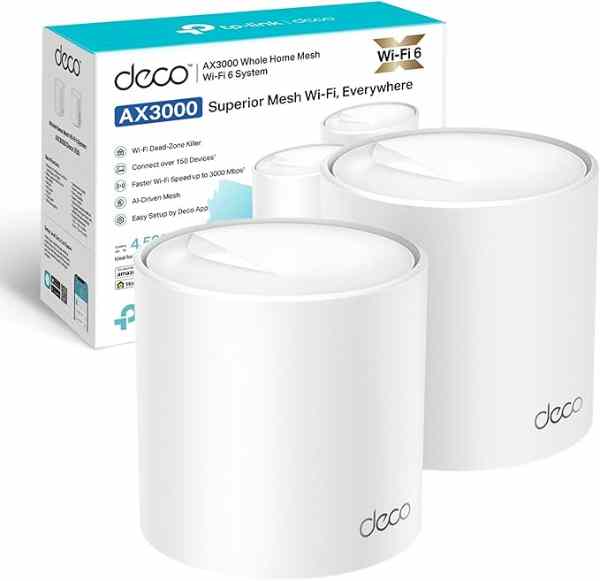
Mesh Wi-Fi System (2-pack)
A bigger upgrade than a single extender, but the most reliable fix for houses where streaming boxes are far from the router.
As an Amazon Associate we earn from qualifying purchases. We may earn a small commission at no extra cost to you. Learn more.