Disclosure: As an Amazon Associate we earn from qualifying purchases. This post contains affiliate links — if you buy through one, we may earn a small commission at no extra cost to you. Our product picks focus on items we can link to, so we may not cover every option on the market. See our About page for how we choose them.
Why Does Netflix Keep Freezing?
If Netflix keeps freezing or buffering on your smart TV, Fire TV Stick, or Roku, the cause is almost always one of a handful of things: your broadband connection, your Wi-Fi signal strength, the streaming device itself, or the Netflix app needing a refresh. The good news is that most of these are easy to diagnose and fix yourself without waiting on a technician.
Irish broadband speeds have improved a lot in recent years, but freezing issues still crop up regularly in older houses, rural areas, or homes where the router is tucked away in a hallway press. Let’s go through the fixes in order of how often they solve the problem.
1. Check Your Broadband Speed
Netflix recommends at least 3 Mbps for standard definition, 5 Mbps for HD, and around 15-25 Mbps for 4K Ultra HD streaming (these figures can change, so it’s worth checking Netflix’s own help pages for the current recommendation). Run a quick speed test on your phone or laptop while connected to the same Wi-Fi network as your streaming device. If your speeds are well below what your provider promises, it may be worth contacting your ISP’s support team directly, as there could be a line fault or outage in your area.
2. Restart Your Router and Streaming Device
It sounds obvious, but a simple restart clears temporary glitches in both your router and your streaming box. Unplug your router, wait about 30 seconds, then plug it back in. Do the same with your Fire TV Stick, Roku, or Chromecast. Give everything a minute or two to fully reconnect before testing Netflix again.
3. Move Closer to the Router (or Extend Your Wi-Fi)
Freezing is often a Wi-Fi signal problem rather than a broadband speed problem. If your TV is in a different room to your router, or there are thick walls in between, the signal may be dropping out intermittently. A Wi-Fi range extender placed halfway between your router and TV can noticeably improve signal strength without needing to rewire anything.
For larger or older homes where one extender isn’t enough, a mesh Wi-Fi system replaces patchy single-router coverage with multiple access points that hand off seamlessly as you move around the house. This tends to be the more reliable long-term fix if you’ve got recurring dead spots.
4. Use a Wired Connection Where Possible
Wi-Fi is convenient, but a wired Ethernet connection is far more stable for streaming, especially in 4K. If your router and TV are in reasonably close rooms, running a long Ethernet cable between them can eliminate freezing caused by wireless interference entirely. Many smart TVs, Fire TV Cubes, and some Roku models have an Ethernet port for exactly this reason.
5. Update or Reinstall the Netflix App
An outdated app version can cause playback problems. Check your device’s app store for pending updates to Netflix. If updating doesn’t help, try uninstalling and reinstalling the app completely, which often clears corrupted cache files that build up over time.
6. Lower the Streaming Quality Manually
Netflix usually adjusts video quality automatically based on your connection, but you can set a fixed quality manually in your account’s playback settings. Dropping from Auto to Medium temporarily can help you confirm whether bandwidth is the culprit while you sort out the underlying issue.
7. Check for Network Congestion
If several people in the house are streaming, gaming, or downloading large files at the same time, your connection can become congested. Try pausing other devices and see if Netflix improves. If it does, that’s a strong sign you need more bandwidth or a mesh system to better distribute the load.
8. Contact Your ISP or Netflix Support
If none of the above helps, the fault may sit with your broadband provider’s network or with Netflix’s servers rather than your home setup. Irish ISPs typically have support lines or live chat that can check for area-wide issues. Netflix’s own help centre can also confirm if there’s a known service disruption.
Recommended for This Guide
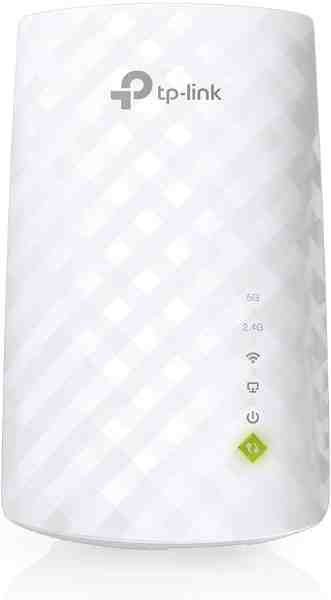
Wi-Fi Range Extender
The most common fix for streaming boxes that are too far from the router — extends your signal without a full mesh system.
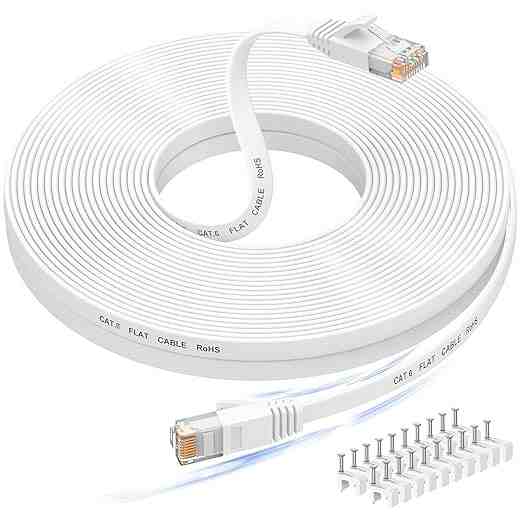
Long Ethernet Cable
A wired connection eliminates Wi-Fi buffering entirely if you can run a cable to your streaming device.
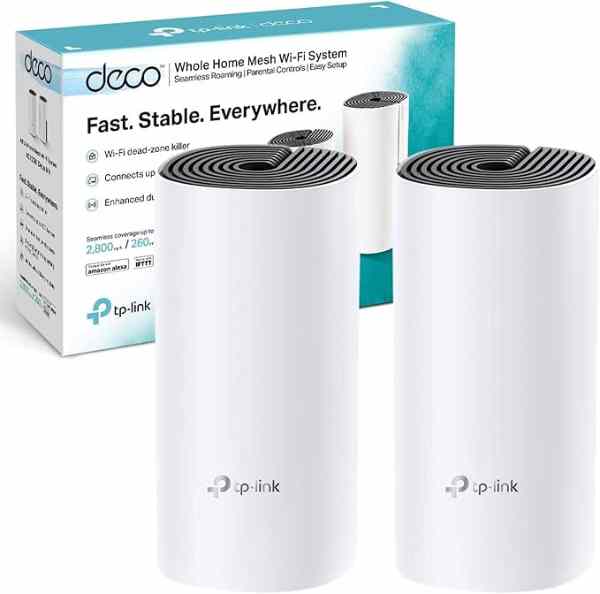
Mesh Wi-Fi System (2-pack)
For persistent buffering across multiple rooms, a mesh system solves it more thoroughly than a single extender.
As an Amazon Associate we earn from qualifying purchases. We may earn a small commission at no extra cost to you. Learn more.