
Disclosure: As an Amazon Associate we earn from qualifying purchases. This post contains affiliate links — if you buy through one, we may earn a small commission at no extra cost to you. Our product picks focus on items we can link to, so we may not cover every option on the market. See how we make money and how we choose them.
Setting up Sky Stream on a new smart TV mostly involves connecting the puck via HDMI, powering it on, and following the on-screen pairing steps with your Sky account. The whole process typically takes under half an hour once your broadband is up and running.
Before You Start
Sky Stream relies on a small streaming device (often called a “puck”) that connects to your television rather than a traditional satellite dish. Before unboxing anything, it’s worth checking a few basics.
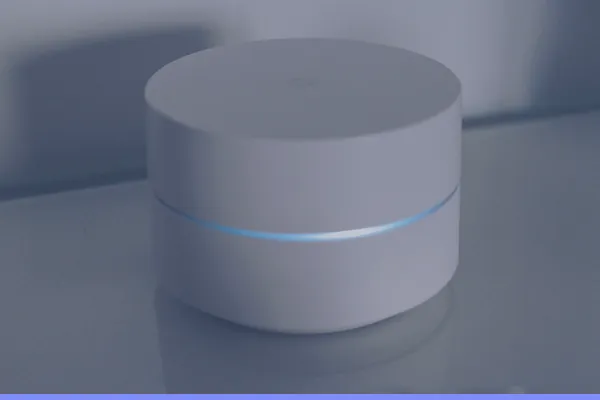
Make sure your home broadband is active and that you know your Wi-Fi network name and password, as these will be needed during setup. If your router sits far from the TV, a Mesh Wi-Fi System can help maintain a stable connection throughout the house, which is particularly useful if the television is in a room with thick walls or sits a good distance from the hub.
You’ll also need a free HDMI port on your new TV. Most modern sets have at least three, but if yours is limited, consider which other devices might compete for that connection.
Step 1: Positioning and Power
Decide where the Sky Stream puck will sit. It needs to be within reach of the TV via an HDMI cable and near a power socket. Many households find it convenient to position the puck on a shelf below the television or tucked beside it.
If you’re mounting your new television on the wall, a Adjustable TV Wall Mount can make cable routing considerably tidier, and it allows you to angle the screen for the best viewing position before you start running leads.
Since the puck, TV, and possibly a soundbar or set-top box will all need power, plugging everything into a Surge-Protected Extension Lead is a sensible way to protect your new equipment from power surges while keeping sockets organised.
Step 2: Connecting the Cables
Connect one end of an HDMI cable to the Sky Stream puck and the other to an available HDMI input on your TV. If your existing cable looks worn or came bundled with older equipment, it may be worth upgrading to a High-Speed HDMI 2.1 Cable to ensure full support for 4K and HDR picture quality, assuming your TV and Sky subscription support those formats.
For TVs mounted on the wall with limited clearance behind them, an HDMI Extender Adapter can make awkward connections easier to reach, particularly where ports are recessed or tightly spaced.
Once cables are connected, use Cable Management Clips to keep leads tidy along the wall or furniture edge, reducing strain on the ports over time.
Step 3: Powering On and Pairing
Switch on the TV and select the correct HDMI input using your television’s source or input button. The Sky Stream puck should power up automatically and display an on-screen welcome sequence.
Follow the prompts to connect to your Wi-Fi network, entering your password when asked. You’ll then be asked to sign in with your Sky account details. If you’re setting this up as part of a new subscription, Sky should have already sent account credentials by email or post.
The system will usually run a brief software update at this stage. This can take several minutes, so avoid unplugging the puck during this process.
Step 4: Linking Remote and Audio Settings
Pair the included remote control by following the on-screen instructions, which generally involve pointing the remote at the puck and pressing a specific button combination. Exact wording may vary depending on the current software version, so it’s best to follow whatever appears on your screen rather than relying on printed instructions that may be outdated.
If you have a soundbar or AV receiver, connect it according to the manufacturer’s instructions and check the TV’s audio output settings to ensure sound is routed correctly.
Step 5: Final Checks
Once setup is complete, test a few channels and on-demand options to confirm everything is working. If a particular app or channel appears unavailable, check that your account region and billing address are correctly set in your Sky account settings, as mismatches here are a common cause of access issues. Contacting Sky’s customer support directly is the appropriate route if something still doesn’t display correctly after checking these settings.
A Note on Free-to-Air Backup
Some households like having a free-to-air option as a backup during broadband outages or for channels not included in their package. A Saorview Set-Top Box connected to a separate HDMI input can provide this without interfering with your Sky Stream setup.
Recommended for This Guide
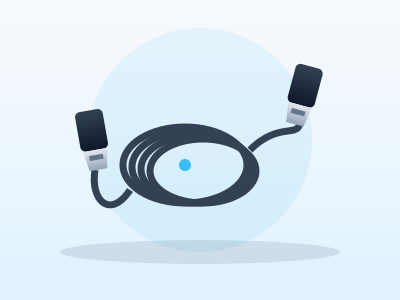
High-Speed HDMI 2.1 Cable
Worth having a spare on hand — older bundled cables often bottleneck 4K/HDR playback.
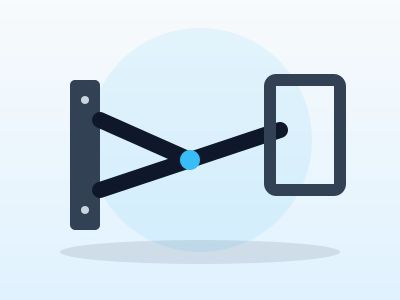
Adjustable TV Wall Mount
Tilting/swivel mounts make it much easier to angle the screen for glare-free streaming, especially in bright rooms.
Fire TV Cube Simplified (setup guidebook)
A setup guidebook, not the Fire TV Cube itself: a plain-English guide to the Cube, handy if you're new to Alexa voice control and the Fire TV menus.
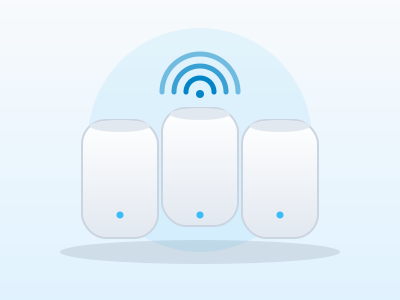
Mesh Wi-Fi System (2-pack)
A bigger upgrade than a single extender, but the most reliable fix for houses where streaming boxes are far from the router.
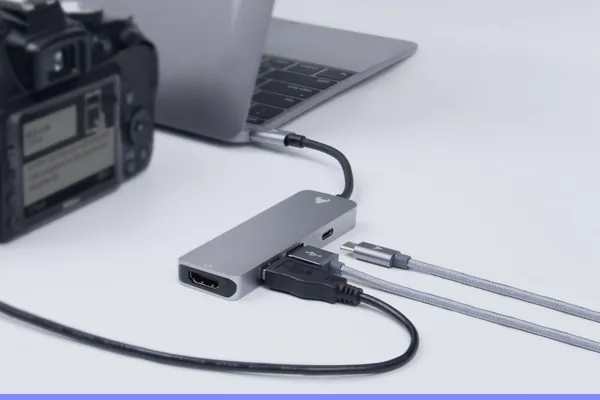
HDMI Extender Adapter
Useful when a streaming stick sits too close to a wall or cabinet and needs a bit of clearance for good Wi-Fi reception.
Cable Management Clips
Keeps HDMI and power cables tidy behind the TV — small, cheap, and makes the whole setup look a lot less chaotic.
Saorview Set-Top Box
Adds free Saorview channels to any TV with an aerial — a simple backup for news and sport when broadband drops. Check it's Saorview-approved before buying.
Surge-Protected Extension Lead
Enough sockets for the TV, soundbar, router and streaming stick behind one cabinet, with surge protection for the lot.
As an Amazon Associate we earn from qualifying purchases. We may earn a small commission at no extra cost to you. See how we make money.
Frequently Asked Questions
Do I need a satellite dish for Sky Stream?
What internet speed does Sky Stream need?
Can I use Sky Stream with any smart TV?
What should I do if a channel says it's not available in my area?

Related
Read our full guide to legal streaming services in Ireland.
Price changes, new launches, and deals as they happen — Follow us on WhatsApp