Disclosure: As an Amazon Associate we earn from qualifying purchases. This post contains affiliate links — if you buy through one, we may earn a small commission at no extra cost to you. Our product picks focus on items we can link to, so we may not cover every option on the market. See our About page for how we choose them.
Virgin Media Play Keeps Crashing
If Virgin Media Play has been freezing mid-programme, closing itself without warning, or refusing to load at all, you’re not imagining it. This is one of the more common complaints from streaming customers in Ireland, and thankfully most causes are things you can fix yourself without waiting on a callback.
Below we’ve broken down the usual culprits and the practical steps that tend to sort them out, whether you’re using the app on a smart TV, a streaming stick, or a phone.
Why Streaming Apps Crash in the First Place
Before jumping to fixes, it helps to understand what’s actually going on. Apps like Virgin Media Play typically crash for one of a handful of reasons:
- The app itself is outdated or has a corrupted cache
- Your device doesn’t have enough free storage or memory to run it properly
- Your home network connection is dropping out or too slow to sustain streaming
- The device’s operating system or firmware is out of date
- There’s a temporary fault on Virgin Media’s servers rather than your setup
Working through these in order usually narrows down the problem fairly quickly.
Start With the Basics
First, fully close the app rather than just leaving it running in the background, then reopen it. On most smart TVs and streaming devices, this means using the device’s app-switcher or settings menu to force-quit it, not just pressing the home button.
Next, restart the device itself. It sounds obvious, but a simple power cycle clears temporary memory issues that build up over days or weeks of use, and it resolves a surprising number of crashing complaints.
If that doesn’t help, check for updates. Both the Virgin Media Play app and your device’s system software should be kept current. On Fire TV Stick and Fire TV Cube devices, updates are usually found under Settings > My Fire TV > About. On Roku, check Settings > System > System Update. Menu wording can vary slightly depending on software version, so if you can’t find the exact option, a quick look through the settings menu should reveal something close.
Clear Cache and Data
Many streaming apps allow you to clear cached data without fully uninstalling them. On Android-based devices (including most Fire TV models), this is typically found under Settings > Applications, where you can select Virgin Media Play and choose to clear cache. If the option to clear data separately exists, try cache first since clearing data may sign you out.
If problems persist, a full uninstall and reinstall of the app is worth doing. This clears out any corrupted files that a simple cache clear might miss.
Check Your Network Connection
A shaky Wi-Fi signal is one of the most common hidden causes of crashing apps, particularly on devices located far from the router or in rooms with thick walls. If your streaming device is in a different room to your router, a Wi-Fi Range Extender can make a noticeable difference by boosting signal strength to that part of the house.
For a more permanent fix, especially in larger homes, upgrading to a Mesh Wi-Fi System spreads a stronger, more consistent signal across multiple rooms rather than relying on a single router.
If your streaming device is near the router anyway, running a Long Ethernet Cable directly from the router to the device removes Wi-Fi variability from the equation entirely. Wired connections tend to be far more stable for streaming than wireless ones.
Check the Remote and Inputs
Occasionally what looks like an app crash is actually a remote control losing responsiveness, causing button presses to register oddly or apps to seem frozen when they’re not. If your remote has been acting sluggish, it might simply be low on battery. Switching to Rechargeable Remote Batteries is a handy way to keep a spare set topped up and ready.
When It’s Not Your Setup at All
If you’ve tried all of the above and the app is still misbehaving, there may be a fault on Virgin Media’s end. Check Virgin Media’s official status page or their social media accounts for service updates, and if nothing is reported, contact Virgin Media customer support directly. They can check for account-specific issues, confirm whether your device model is fully supported, and advise on regional account settings if content isn’t displaying correctly.
A Quick Note on Device Compatibility
Not every device runs Virgin Media Play equally well. If you’re using an older smart TV or streaming stick, it may simply lack the processing power for smooth performance. In that case, moving to a more capable device such as a Fire TV Stick, Fire TV Cube, Roku, or Chromecast can often resolve persistent crashing issues that no amount of troubleshooting will fix on ageing hardware.
Recommended for This Guide
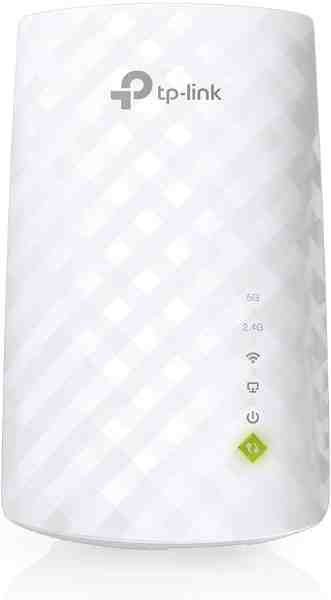
Wi-Fi Range Extender
The most common fix for streaming boxes that are too far from the router — extends your signal without a full mesh system.
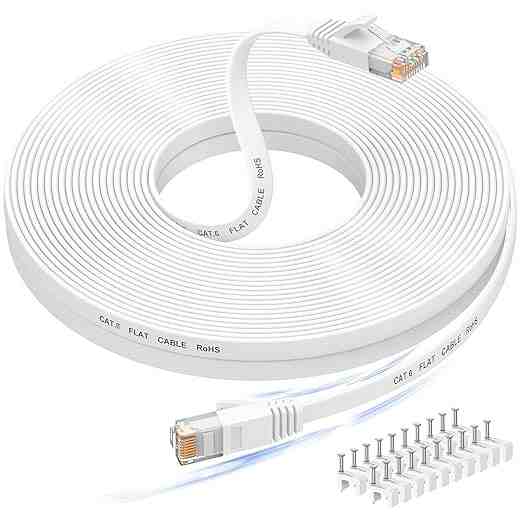
Long Ethernet Cable
A wired connection eliminates Wi-Fi buffering entirely if you can run a cable to your streaming device.
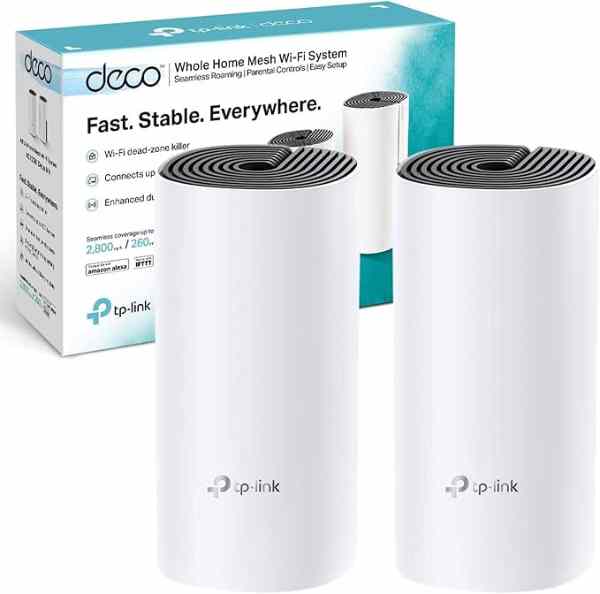
Mesh Wi-Fi System (2-pack)
For persistent buffering across multiple rooms, a mesh system solves it more thoroughly than a single extender.
As an Amazon Associate we earn from qualifying purchases. We may earn a small commission at no extra cost to you. Learn more.