Disclosure: As an Amazon Associate we earn from qualifying purchases. This post contains affiliate links — if you buy through one, we may earn a small commission at no extra cost to you. Our product picks focus on items we can link to, so we may not cover every option on the market. See our About page for how we choose them.
GAA+ Not Working? Try These Fixes
If you’ve settled in to watch your county battle it out only to be met with buffering wheels or an error message, you’re not alone. GAA+ issues tend to crop up around the busiest match days, when demand on both your own network and the service itself is at its highest. Here’s a step-by-step way to work through the most common causes.
Start With the Basics
Before diving into anything technical, close the GAA+ app fully and reopen it. On smart TVs and streaming sticks, this usually means removing it from the recent apps list rather than just pressing back. On phones, swipe it away from your app switcher.
It’s also worth checking whether the problem is actually with GAA+ or with your device’s software. Make sure the app itself is updated to the latest version, and that your TV or streaming device’s operating system is current too. Outdated apps are one of the most common causes of playback errors that otherwise seem mysterious.
Check Your Account and Region Settings
A surprising number of “not available” or “content restricted” errors come down to account settings rather than technical faults. Confirm that:
- You’re logged into the correct GAA+ account (easy to get wrong if multiple family members share devices).
- Your account’s registered country matches where you’re actually watching, since some services tailor availability based on your registered region.
- Your app store account (Google Play, Amazon Appstore, etc.) is set to the Irish store, which affects which version of the app you receive and how it behaves.
If something still looks wrong after checking these, it’s best to contact GAA+ support directly. They can confirm whether there’s a known outage or an issue specific to your account, which saves a lot of guesswork.
Diagnose a Buffering or Freezing Stream
Buffering is almost always a network issue rather than an app issue. A few things to try, in order:
- Restart your router. Unplug it for about 30 seconds and let it fully reboot. This clears temporary congestion and refreshes your connection.
- Move closer to your router, or better yet, connect via ethernet if your device supports it. A long ethernet cable is a cheap fix if your streaming device sits far from the router and you want a rock-solid wired connection for match day.
- Check for Wi-Fi dead spots. If your living room is at the far end of the house from the router, a Wi-Fi range extender can make a real difference to stream stability without any complicated setup.
- Consider a mesh system if buffering is a recurring problem throughout the house, not just in one room. A mesh Wi-Fi system spreads coverage more evenly than a single router, which helps when multiple people are streaming at once.
Device-Specific Checks
Smart TVs
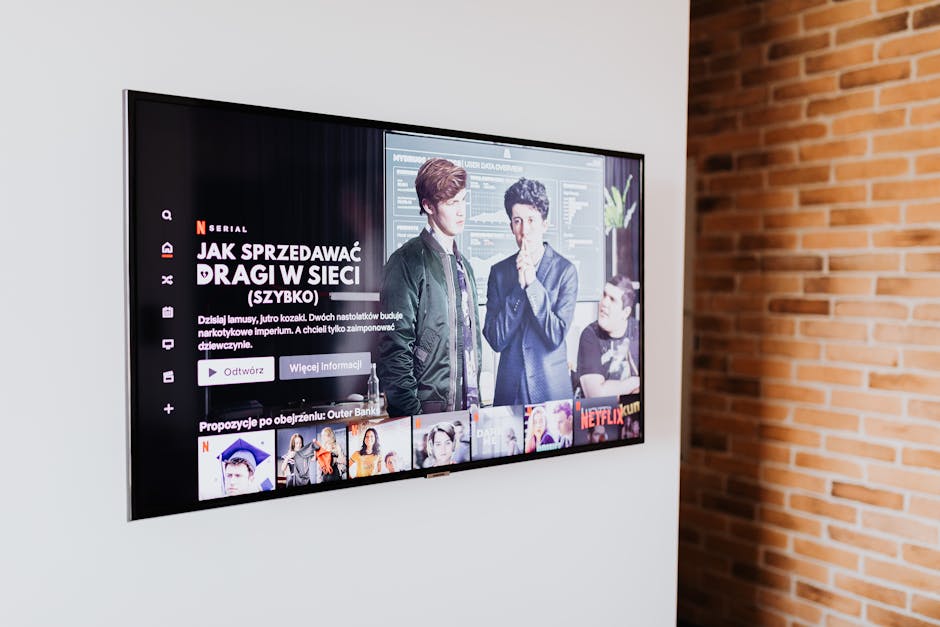
Built-in smart TV apps are sometimes the last to get updates, and older TV models can struggle with newer app versions. If GAA+ consistently underperforms on your TV’s native app, try streaming through a dedicated device instead.
Fire TV Stick, Fire TV Cube, Roku, and Chromecast
These streaming devices generally get app updates faster than smart TV operating systems do. If you’re troubleshooting on one of these:
- Unplug the device itself (not just the TV) for 30 seconds to force a full restart.
- Check available storage, as some devices slow down or crash apps when storage is nearly full.
- Reinstall the GAA+ app if it’s been a while since you last set it up.
Phones and Tablets
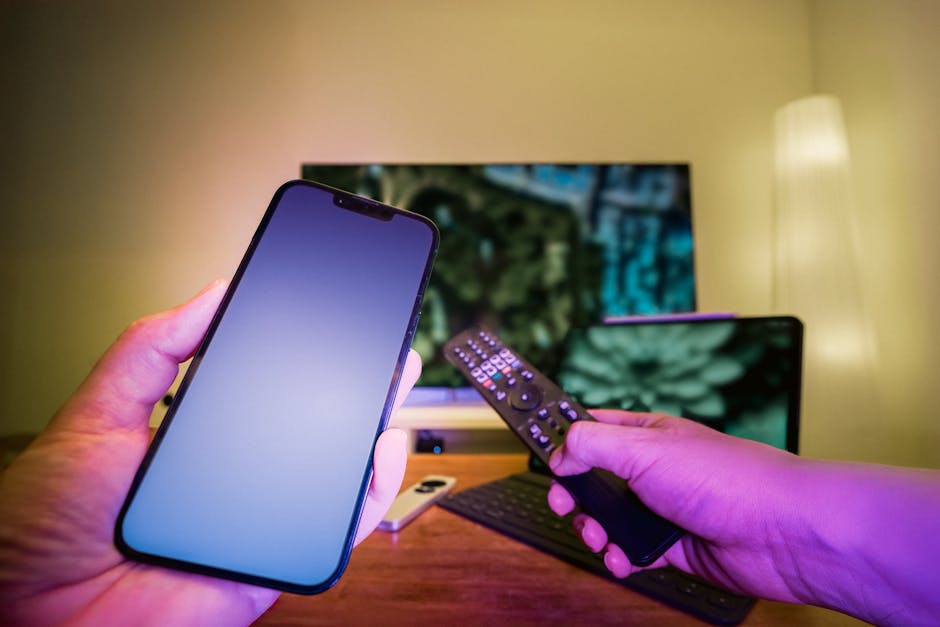
Mobile data limits and background app restrictions can interfere with smooth playback. If you’re streaming over mobile data, check that GAA+ has permission to run in the background and isn’t being throttled by a data saver setting.
Don’t Overlook the Small Stuff
A few low-tech culprits are easy to miss:
- Remote control issues can make it seem like the app has frozen when it hasn’t. If your remote is sluggish, rechargeable batteries are a handy long-term fix, especially for households going through disposables during a busy GAA season.
- A dirty or glare-covered screen won’t cause playback issues, but it does make picture quality problems harder to diagnose. A proper screen cleaning kit is worth having if you’re trying to judge whether a picture issue is your screen or your stream.
- Low battery on a tablet or phone used as a secondary screen can cause the device to throttle performance to save power. Keeping it plugged in or charged up avoids this during a long championship weekend.
When All Else Fails
If you’ve worked through connectivity, app updates, and account settings and GAA+ still isn’t playing ball, check the service’s official social media channels or support page for outage notices. Streaming services occasionally experience server-side problems during high-traffic matches, and in those cases, the fix is simply patience rather than anything on your end.
Recommended for This Guide
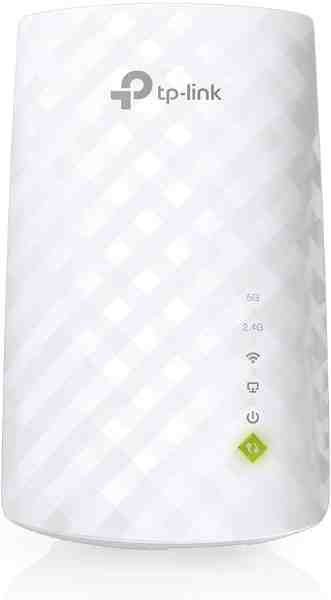
Wi-Fi Range Extender
The most common fix for streaming boxes that are too far from the router — extends your signal without a full mesh system.
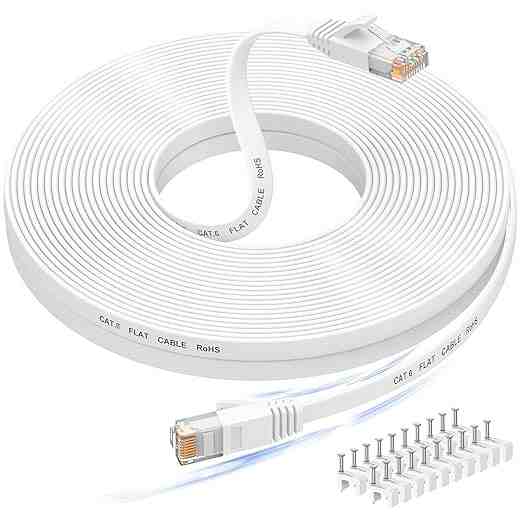
Long Ethernet Cable
A wired connection eliminates Wi-Fi buffering entirely if you can run a cable to your streaming device.
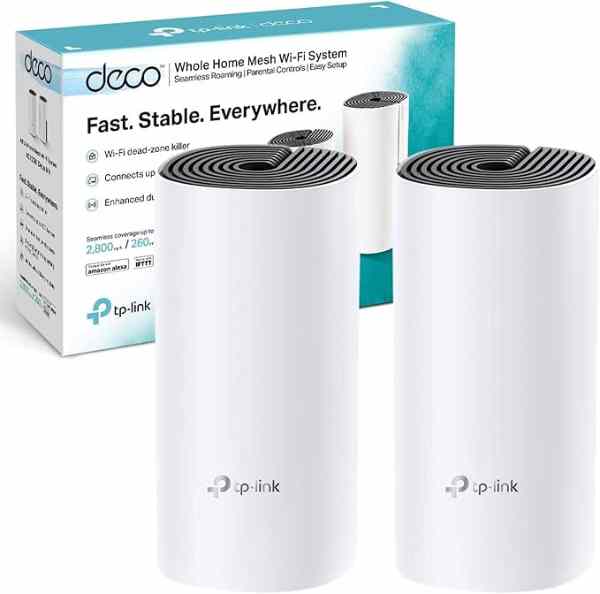
Mesh Wi-Fi System (2-pack)
For persistent buffering across multiple rooms, a mesh system solves it more thoroughly than a single extender.
As an Amazon Associate we earn from qualifying purchases. We may earn a small commission at no extra cost to you. Learn more.